
MO-211 Microsoft Excel Expert · Free Windows app

Practice MO-211
in real Excel

CertReady gives you timed practice exams for the Microsoft Office Specialist Excel Expert (MO-211) exam. You do every task in desktop Excel on your PC, and CertReady grades the workbook you saved.
  • Version 1.5.0 for Windows 10 or 11. Requires desktop Excel from Microsoft 365, or Excel 2021 or later.
  • No install needed for the demo: it runs the real exam screens in your browser, with grading simulated. Real grading of your work in Excel needs the Windows app. The demo works best on a computer screen.
  • Windows may show a SmartScreen prompt the first time you run the installer. How to install
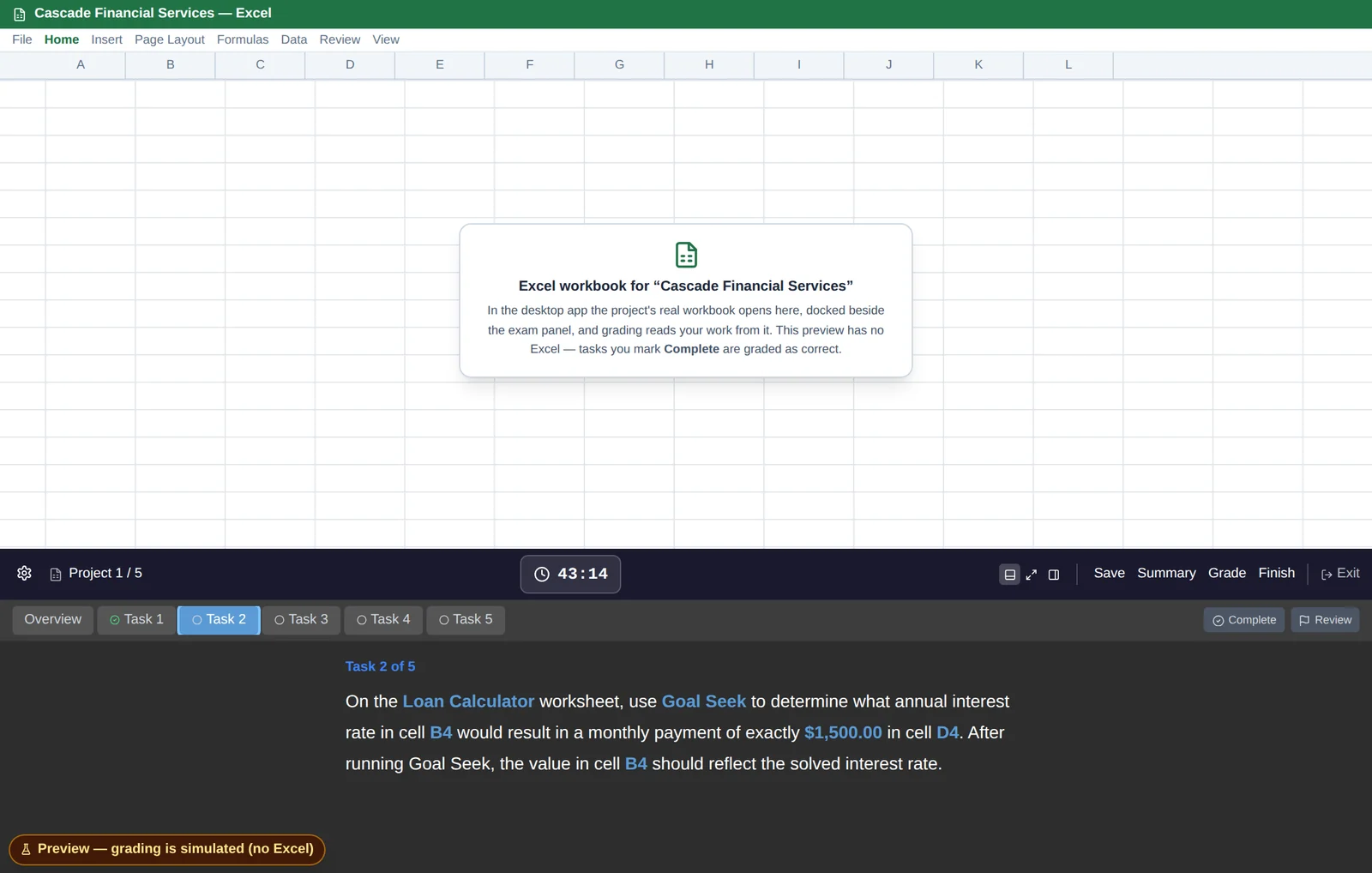
An exam in progress in the CertReady browser demo: the task panel with the timer and task 2 of 5, docked under the demo's placeholder for the Excel workbook.
The browser demo. In the app, the project's real workbook opens in desktop Excel next to the task panel.
practice exams
6
domain drills
4
graded tasks
230
MO-211 skills practiced
48 of 48

How it works

From download to your first score

  1. Step 1: Install and sign in

    Run the installer, then create a free CertReady account in the app. You sign in each time CertReady starts, so students who share a lab PC keep their results apart.

  2. Step 2: Pick an exam and a mode

    Training mode is untimed and shows a solution for every task. Testing mode runs the clock and hides the solutions.

  3. Step 3: Do the tasks in Excel

    Each project opens its workbook in Excel beside the task list. When you finish, CertReady grades your saved workbooks and shows your score, your result in each exam domain and what it checked for each task.

Features

Practice the way the exam works

MO-211 asks you to complete tasks in Excel, so CertReady does too, and it grades what is in your workbook.

Tasks in desktop Excel

Each project opens its workbook in desktop Excel next to the CertReady task panel. You use Excel's own ribbon, dialogs and shortcuts, as you will in the exam.

Graded from your workbook

CertReady checks the workbook you saved:

  • The formula in a cell
  • A number format
  • A chart's type and data
  • A PivotTable's fields
  • Protection and calculation settings

A task you leave undone scores zero.

Results by exam domain

Scores run from 0 to 1,000, and 700 passes. Results break down by the four MO-211 domains and show what was checked for each task. You can print the report or save it as a PDF.
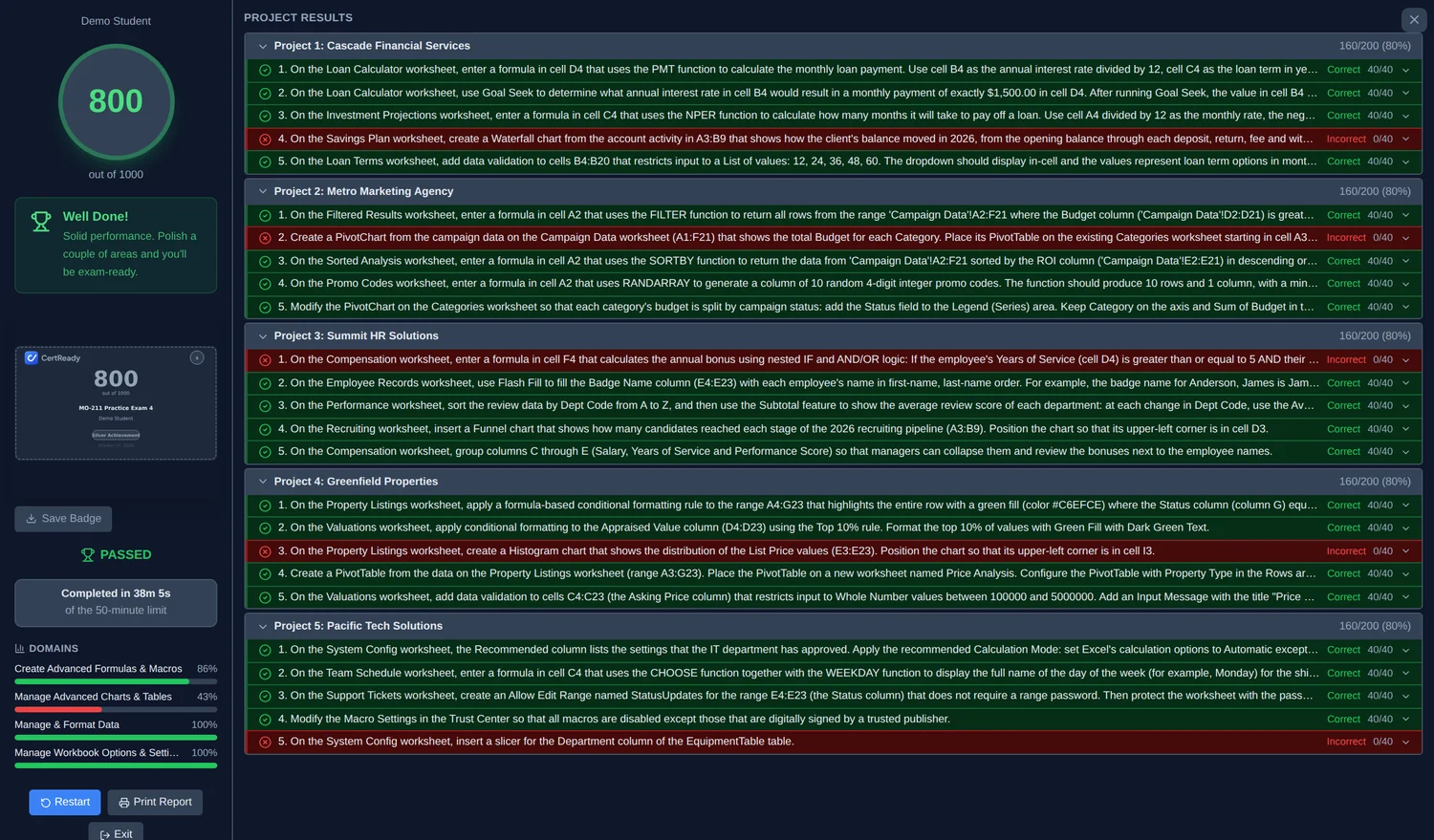
CertReady's results screen: a score of 800 out of 1000, a bar for each of the four MO-211 domains, and every task of the exam marked correct or incorrect.
The results screen in the browser demo, where grading is simulated.

Training and Testing modes

Training
Untimed, shows each task's solution and grades a project when you move on to the next one.
Testing
Runs the clock, hides solutions, gives your score at the end and submits the exam itself at 0:00.

A solution for every task

Each task has a written solution with numbered steps, plus the ribbon path or the exact formula where the task needs one.

Resume after a crash

If CertReady closes or crashes during an exam, the next start offers to resume it with your work and the time you had left.

Your Excel settings come back

An exam changes Excel options such as calculation mode, error checking and macro security. When it ends, CertReady puts your own settings back. It never saves or closes a workbook it didn't open.

Results saved to your account

Finished attempts are saved to your CertReady account. If you join a class with your teacher's code, that teacher can see them too. If you're offline, the result waits on your PC and uploads when you're back online or next sign in.

MO-211 Excel Expert

What's included

6 practice exams

Each has 5 projects of 5 tasks, a 50-minute time limit and 700 out of 1,000 to pass, the same time limit and passing score as the MO-211 exam.

projects
5
tasks
25
minutes
50
out of 1,000 to pass
700

4 domain drills

One drill per exam domain, 20 tasks each in a single workbook, with a 25-minute limit in Testing mode and no limit in Training mode.

  • Domain 1: Manage workbook options and settings
  • Domain 2: Manage and format data
  • Domain 3: Create advanced formulas and macros
  • Domain 4: Manage advanced charts and tables

Together they practice all 48 skills in Microsoft's MO-211 skills outline. See the outline on Microsoft Learn

Read the MO-211 exam guide: all 48 skills and a study plan

CertReady covers MO-211 only. Other certifications are not available.

For teachers

A dashboard for teachers

Create a class and give its join code to your students. Every exam they finish in CertReady then appears in your dashboard on this site: score, pass or fail, time taken, results by exam domain and task-by-task grades. You see only the students in your own classes.

  • Classes with join codes that you create, rename and manage yourself
  • Pass rate, average score and average result in each domain
  • Each student's attempts, score trend and task results
  • Filters by class, by Testing or Training mode and by pass or fail
  • CSV export of attempts with a column for each domain

Teacher accounts are free. Ask for one with the e-mail address of your CertReady account.

Already a teacher? Sign in to the dashboard
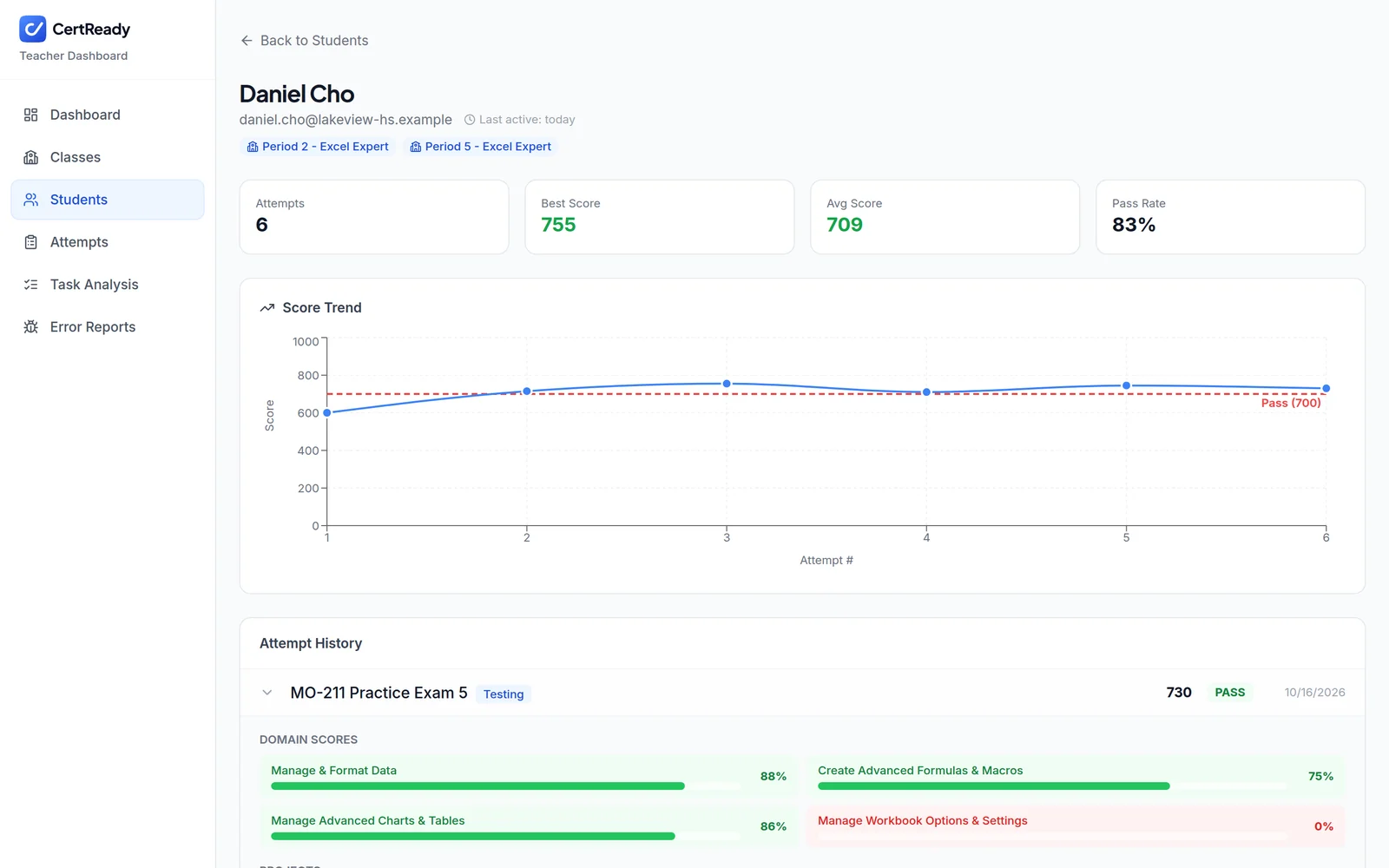
The teacher dashboard's page for one student: attempts, best and average score, pass rate, a score trend chart and the latest attempt's results in each domain.
The teacher dashboard with made-up sample data.

Download CertReady

Free for Windows. Read the install notes below before you run the installer.

Download for Windows

CertReady-Setup.exe · version 1.5.0 · 4.1 MB

SHA-256: 3C29450B7286DCA956ACA4488D8F625C85B73A5CFF6B17EBD84A9930FD0C6353

Try it in your browser first

Click through a practice exam before you install. In the browser, grading is simulated; grading your work in Excel needs the Windows app. Best on a computer screen.

System requirements

  • Windows 10 or Windows 11.
  • Desktop Excel from Microsoft 365 (the installed app, not Excel for the web), or Excel 2021 or later. Excel 2019 and earlier lack functions the exams use, such as XLOOKUP, FILTER, SORTBY, RANDARRAY and LET.
  • .NET Framework 4.8, which current Windows 10 and 11 already include.
  • Microsoft Edge WebView2 Runtime, which comes with Windows 11 and most Windows 10 PCs. If it is missing, CertReady tells you where to get it.
  • An internet connection to sign in with a free CertReady account.
  • No administrator rights: CertReady installs for your Windows user only.

Installing on Windows

The installer is digitally signed. To see who signed it, right-click CertReady-Setup.exe in File Explorer and choose Properties, then Digital Signatures. A new release can still trigger Microsoft Defender SmartScreen until it has some download history.

  1. Download the installer only from this page. Your browser's address bar should show certready.ai.
  2. To check the file, right-click it in File Explorer and choose Properties, then Details: the product name is CertReady and the product version is 1.5.0. For an exact match, open PowerShell in the folder you saved it to, run Get-FileHash .\CertReady-Setup.exe and compare the hash with the SHA-256 shown on this page.
  3. Open CertReady-Setup.exe. If SmartScreen appears, select More info, check that the publisher matches the signature you saw, then select Run anyway.
  • Your browser may also warn that the file isn't commonly downloaded. In Microsoft Edge, open Downloads, select the … menu next to the file, then Keep, Show more and Keep anyway.
  • On school and work PCs, IT policy can remove the Run anyway button. Ask your IT team to allow CertReady.